

What’s up, guys!
In today’s article, we take a look at the EXTRAVIS V3 smart projector. It is a compact projector with very good features such as 1000 ANSI Lumens brightness, 1080P Native resolution, auto focus and keystone, Dolby audio sound, and a smart system with Netflix, Prime Video, YouTube and other apps.
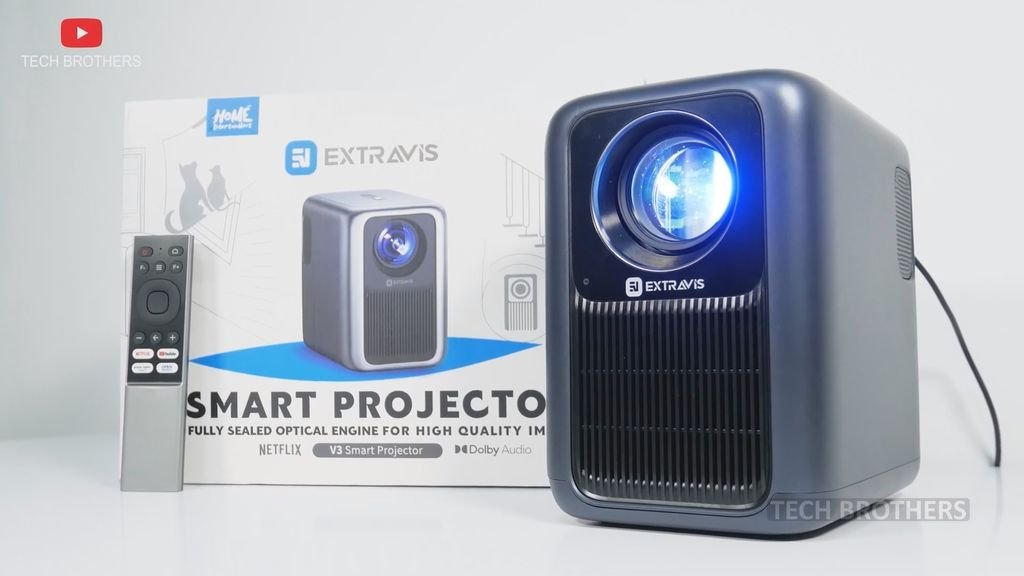
By the way, we recently tested a Xiaomi projector that has a very similar design, but more compact size. You know, the EXTRAVIS projector looks like the big brother of the Redmi Projector.
We will try to show you some videos of them and you will see the difference.
Let’s start the review of the EXTRAVIS V3 with unboxing.
Unboxing
Looking at the box, we can see that this projector is meant for home use because there are cats, staircase, a table with vase and other household things.
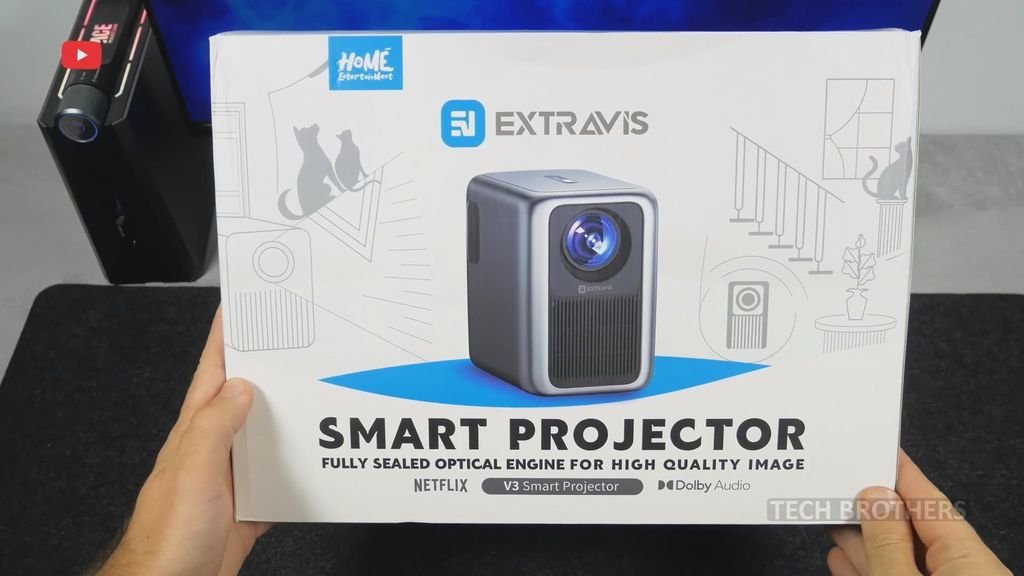
We can also see some features of the projector on the box, such as 10W Dolby Audio, Native Full HD resolution, Auto Focus, Four Point Keystone correction, and Zoom In/Out.
Inside the box we have the projector itself, as well as the accessories for it, such as remote control, batteries, user manual and a large power adapter with power cable.
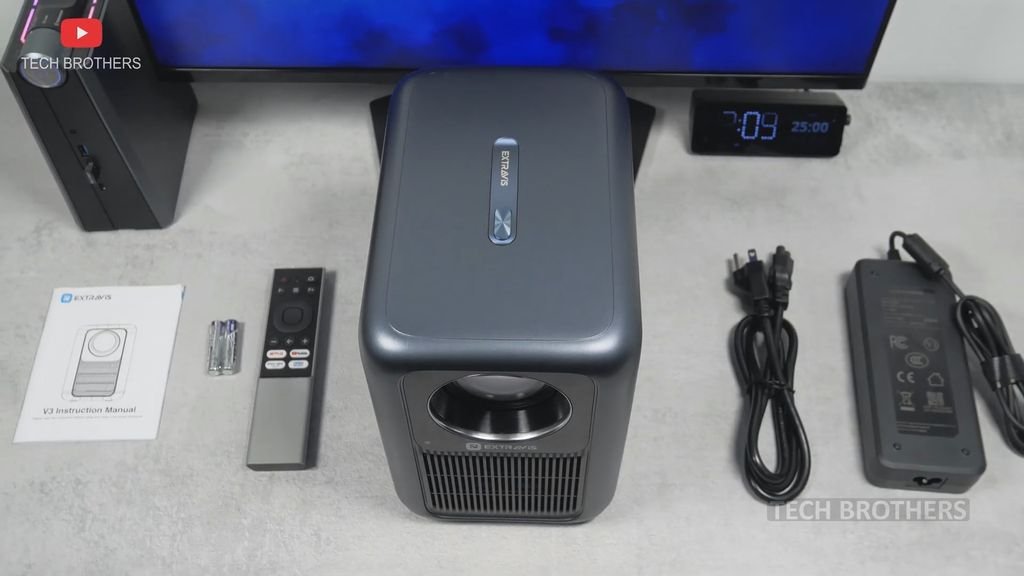
You know, this is probably the biggest power adapter of any projector I have tested. Usually the power adapter is inside the projector, but here it is separate, like on laptops or computers. However, I think this is a good solution because it makes the projector quite compact.
Design
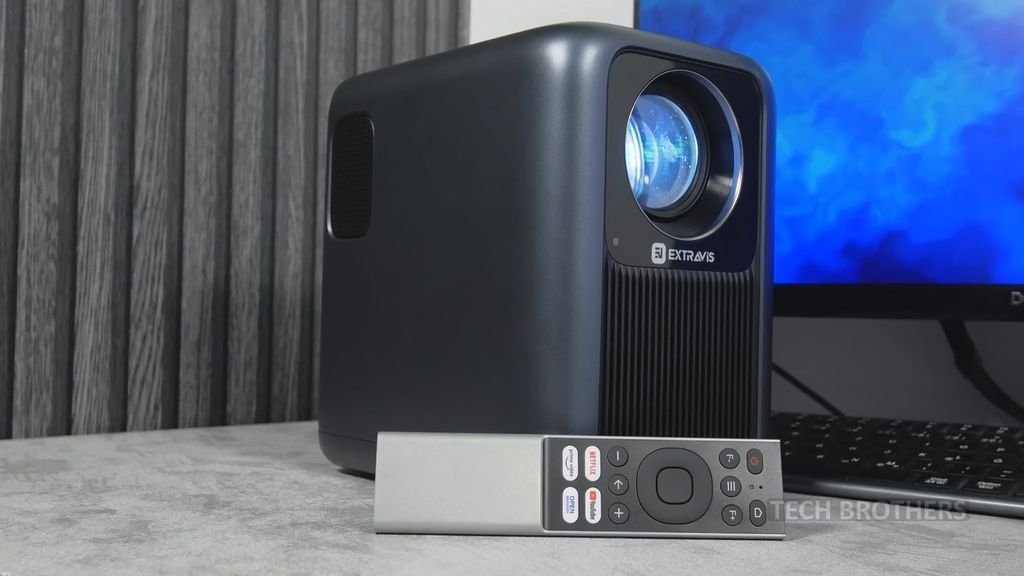
If we have already started talking about the size, it is 210 by 215 by 145 mm. However, to my surprise, it is pretty heavy – 2660 grams.
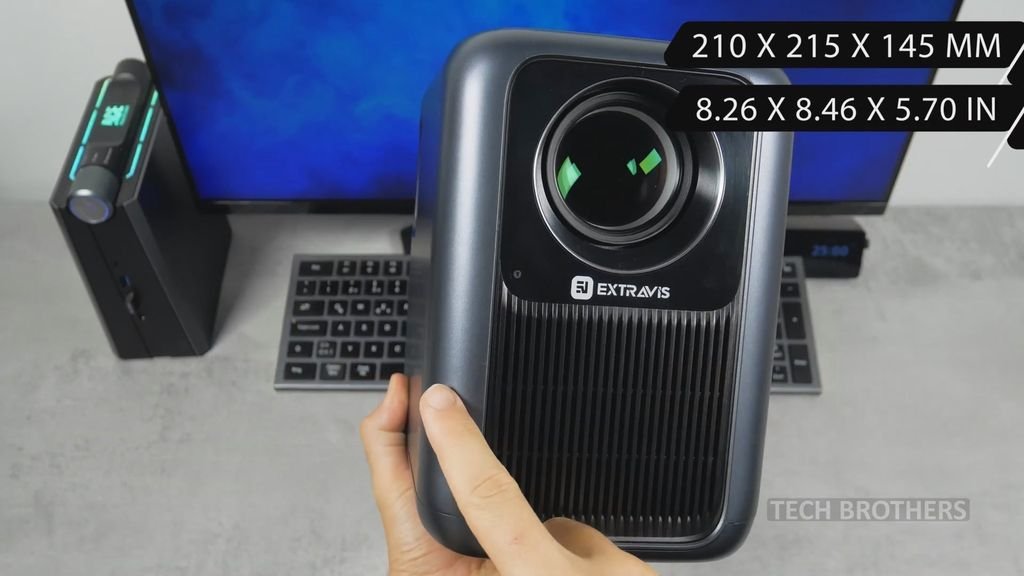
That would suggest that there is a powerful hardware inside.
By the way, I told you that the EXTRAVIS projector has a similar design to the Xiaomi projector, but it is much bigger. It is about twice as big, and heavy.
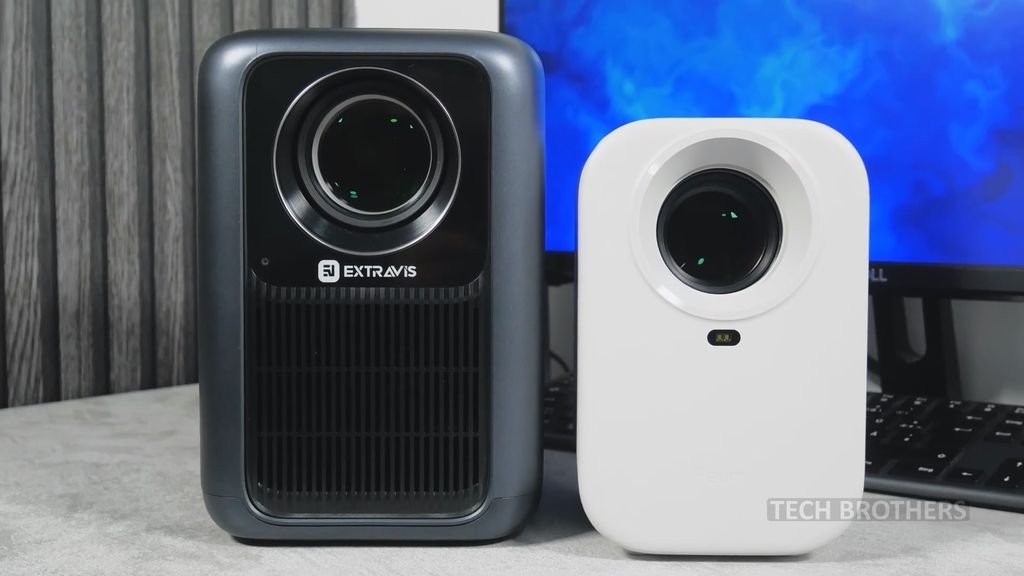
You know, I am not afraid of its size and weight, because that means the projector should have a very good image quality.
There is a large lens on the front, as well as a large air outlet. We can also see a small sensor on the front. I think it is an autofocus and keystone correction sensor.
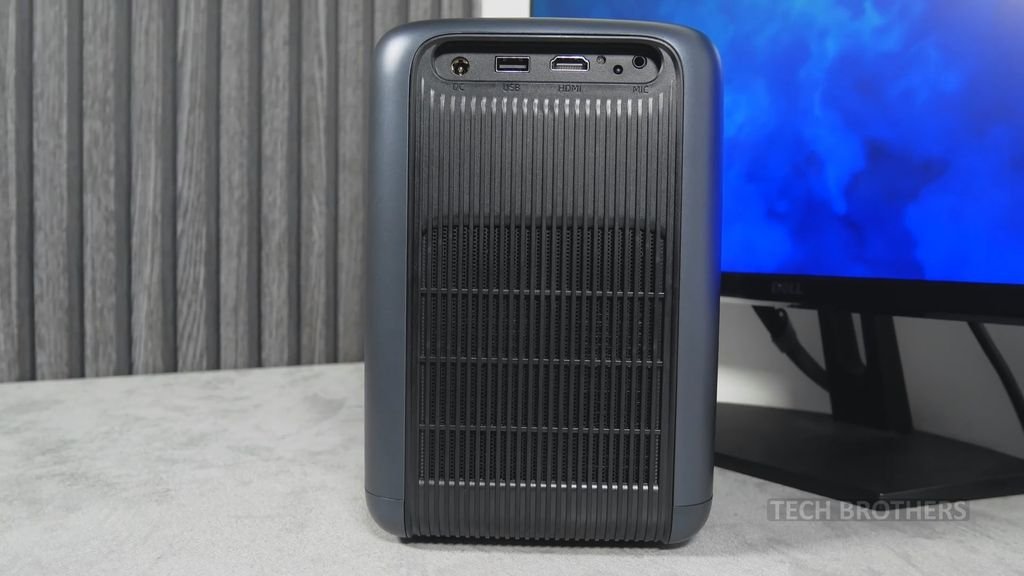
The rear panel has an air inlet, and various connectivity options such as DC port, USB port, HDMI Port and headphones jack. There is also an infrared receiver for remote control and LED indicator here.
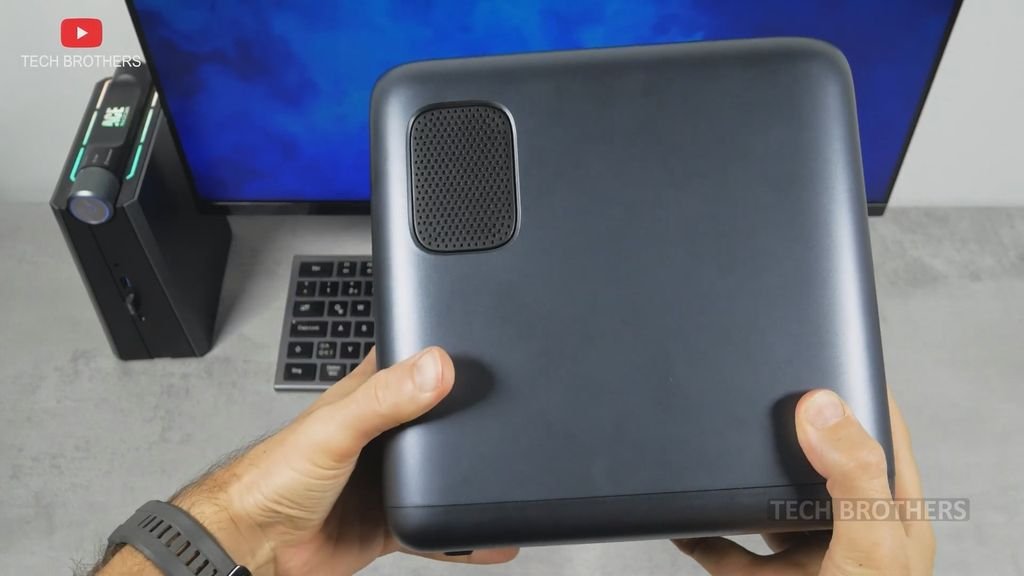
There are two speaker grilles on the sides. You know I expect very good sound from this projector.
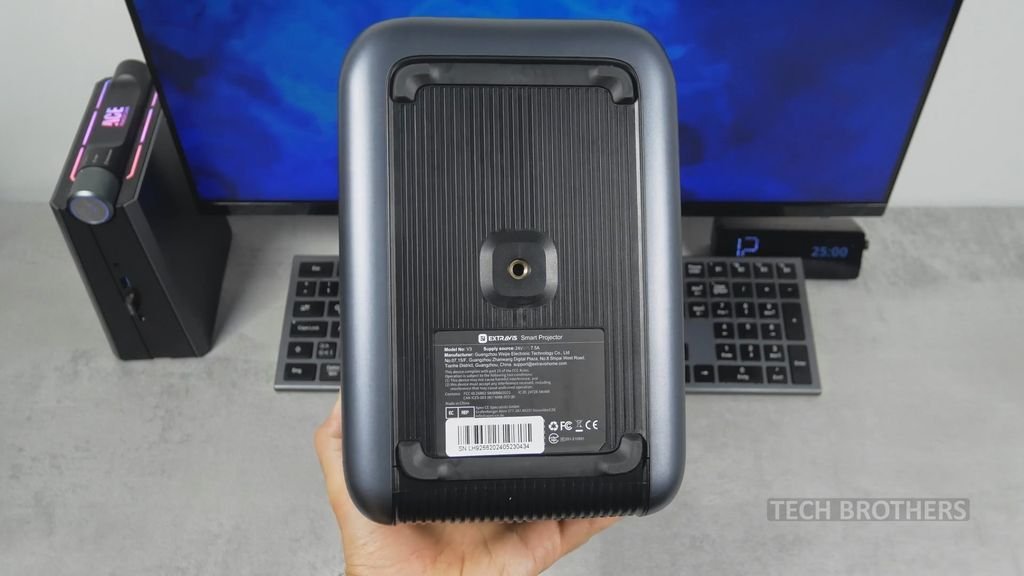
The EXTRAVIS V3 stands on rubberized feet that keep it from sliding around on surfaces. There is also a tripod mount hole at the bottom.
Finally, it has a single power button on the top. That’s why you need a remote control. It is included in the kit, and I really like the way it looks and feels.
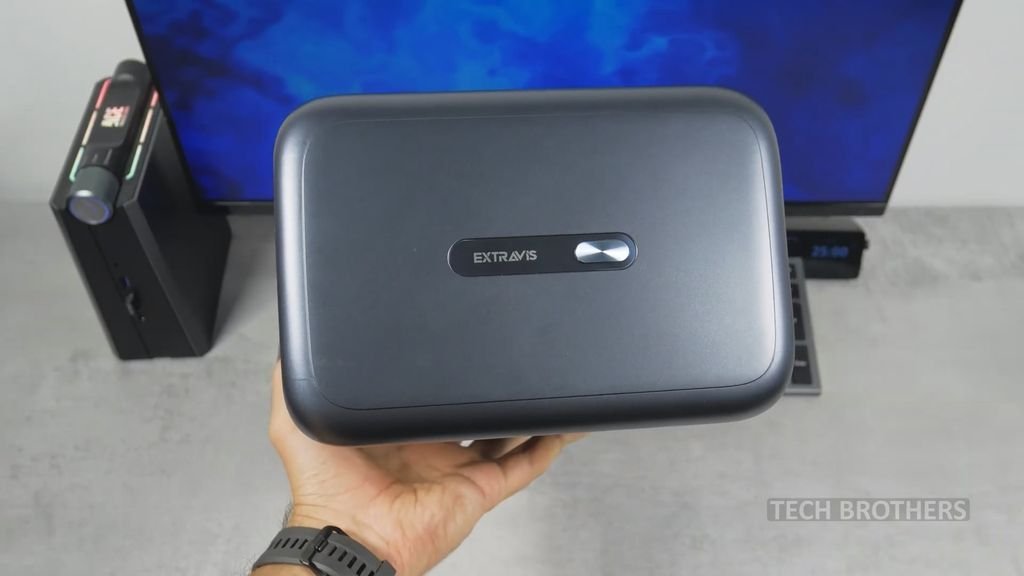
You know, it looks like metal, but it is actually plastic, very nice quality plastic.
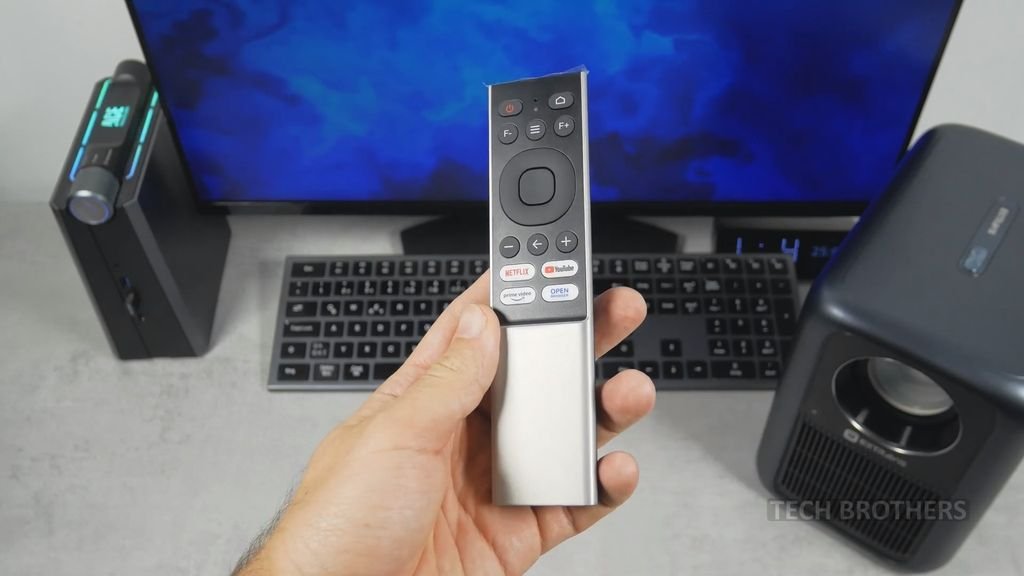
It has all the buttons you will need such as power, menu, focus control, navigation, and even quick access buttons to Netflix, YouTube, Prime Video and Open Browser.
I have nothing more to add about the design of this projector. Let’s just turn it on.
Auto Focus and Keystone
At first, I put the projector just on the table, but the image was too low on the wall. Although it has an automatic keystone correction, there is no way you can lift the projector because there is no gimbal stand or even a simple kickstand.
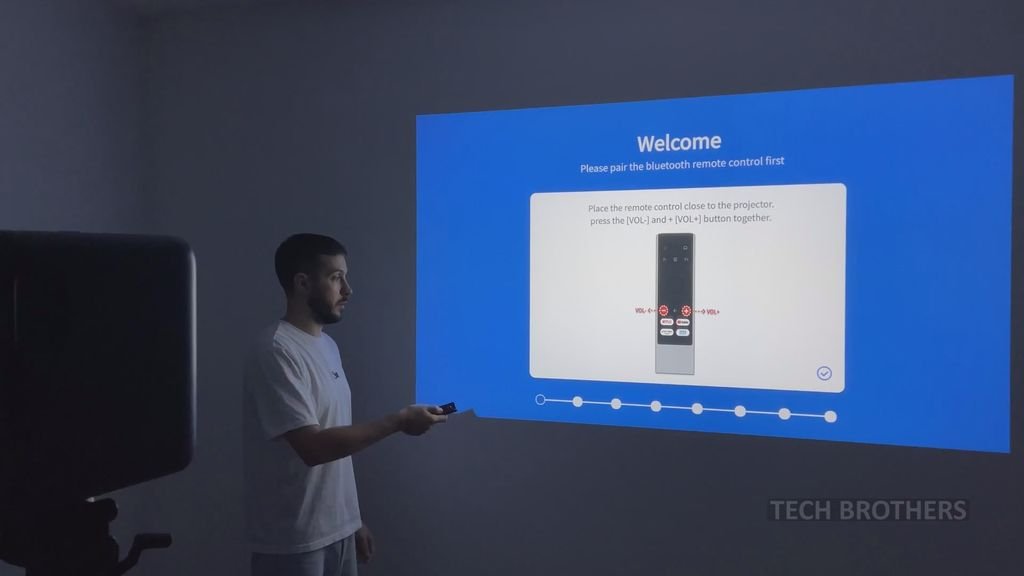
You can also put it on a shelf and the picture will be even much bigger.
However, I found it most convenient to place a projector on a tripod, because that way I can adjust the tilt of the projection.
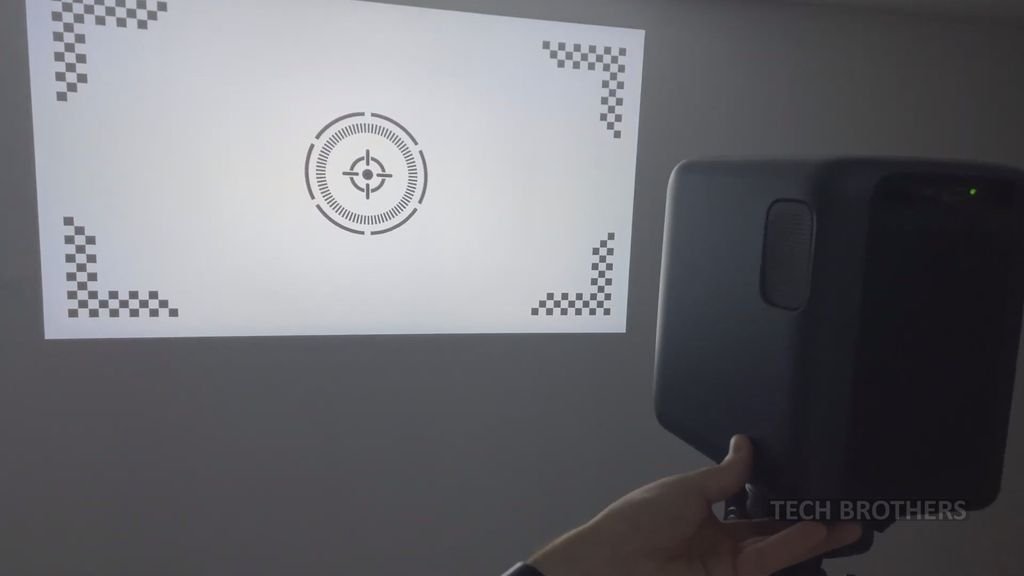
The EXTRAVIS V3 automatically adjusts the focus and keystone every time you turn it on or change position.
First setup
So, the first time you turn on the projector, you are prompted to set up it, namely pair the Bluetooth remote, select projection position, language, region, and connect to Wi-Fi network.
You can also sign into your Netflix account.
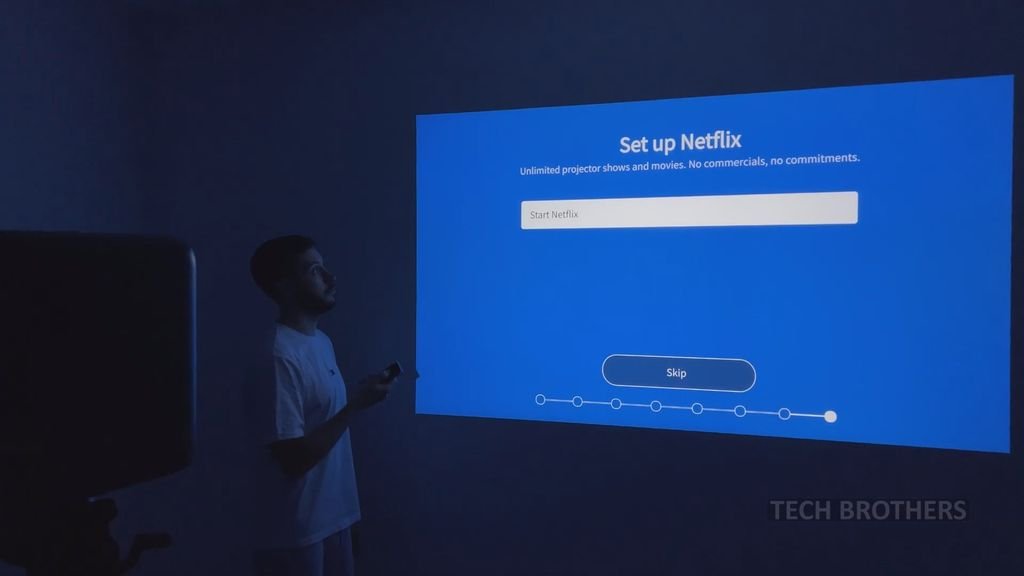
By the way, I have a new software update on the projector. Let’s install it.
You know, I’m surprised the projector has a software update. Honestly, this is the first time I have seen this. I assume the projector will be getting more software updates in the future. That’s very good.
Smart System
So, while it is not an Android TV, it is my favorite system on projectors. I have seen it several times before on other projectors, for example, the Yaber V12, and it works very well.
By the way, it is actually a Linux-based system, not Android.
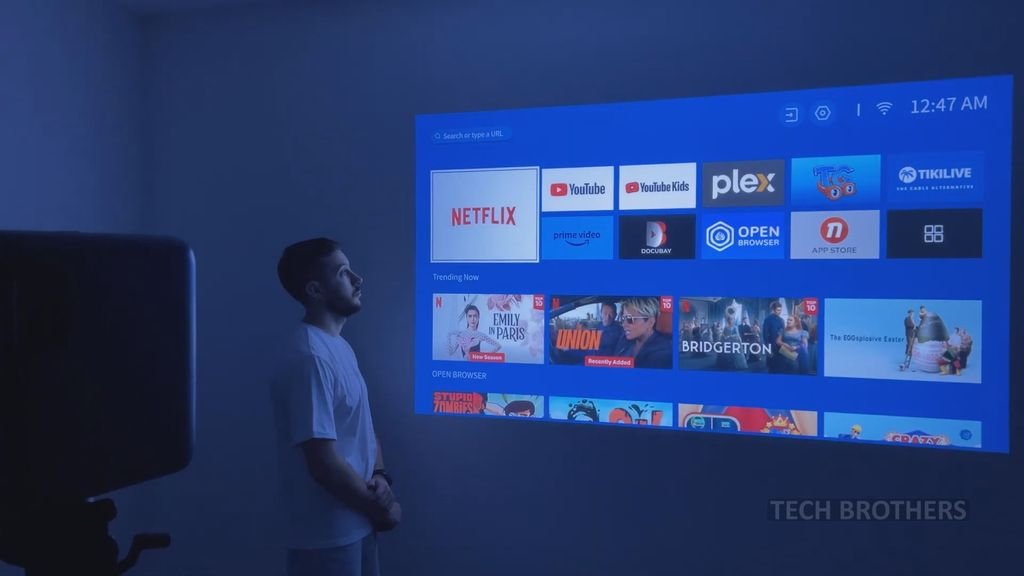
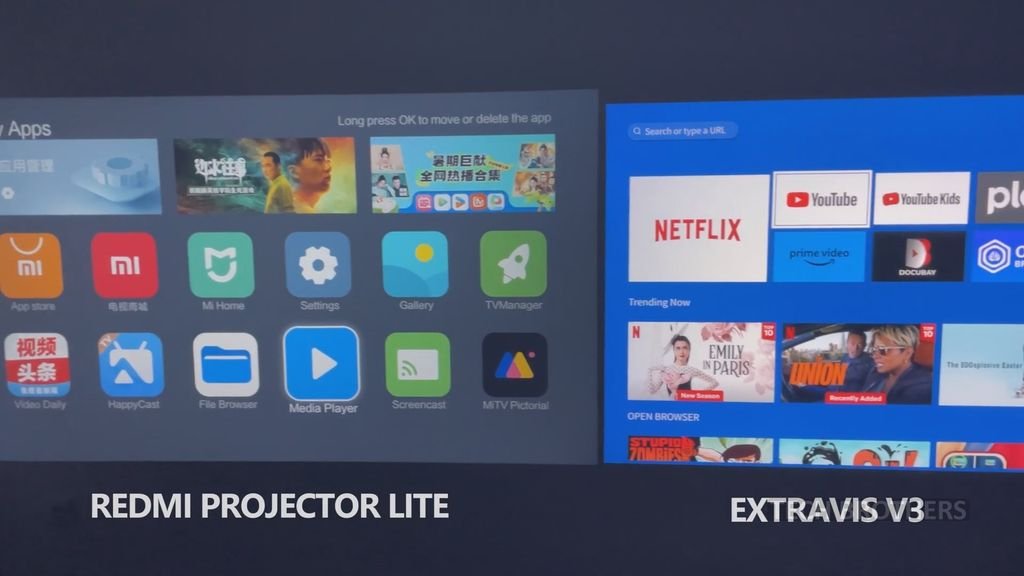
We already have Netflix, YouTube, YouTube Kids, Prime Video and some other applications pre-installed.
Then, we can see Trending shows on Netflix, and Open Browser games on the home screen.
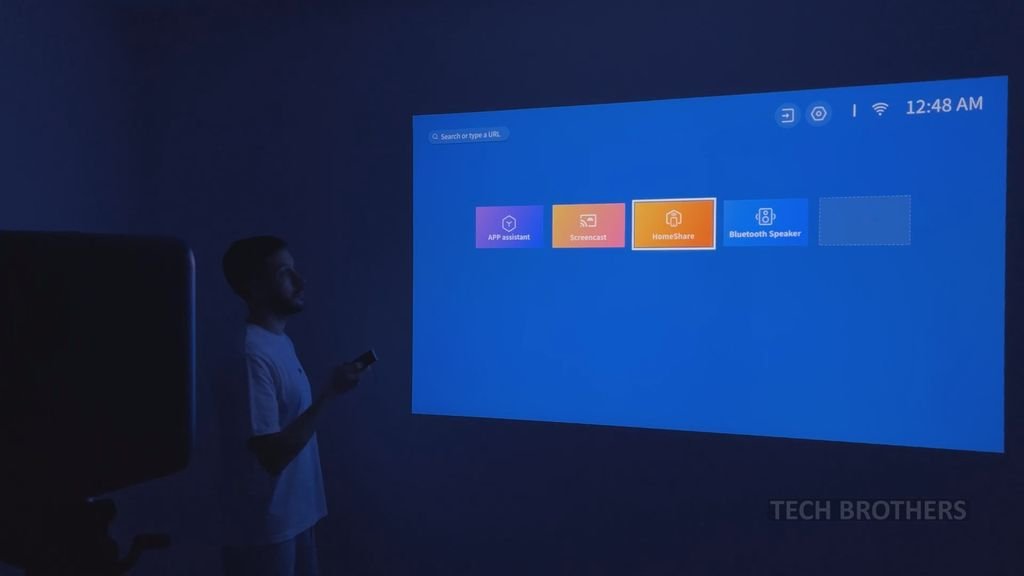
We can also go to the section with other apps, and find App Assistant, Screencast, Home Share and Bluetooth Speaker here.
We will test a screen mirroring a little later.
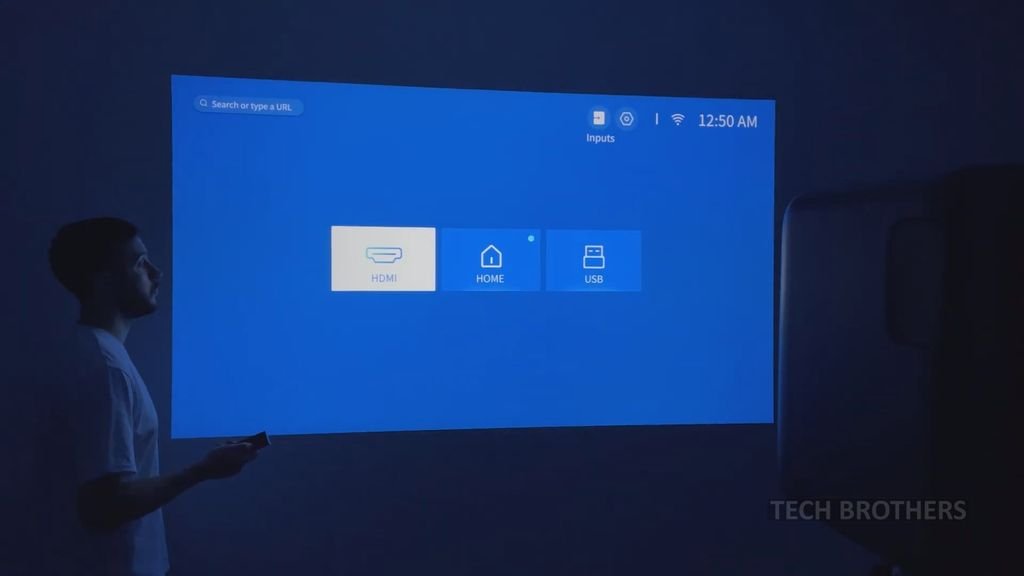
You can select the input signal HDMI, Home or USB for the projector.
Settings
Now let’s take a look at the settings menu.
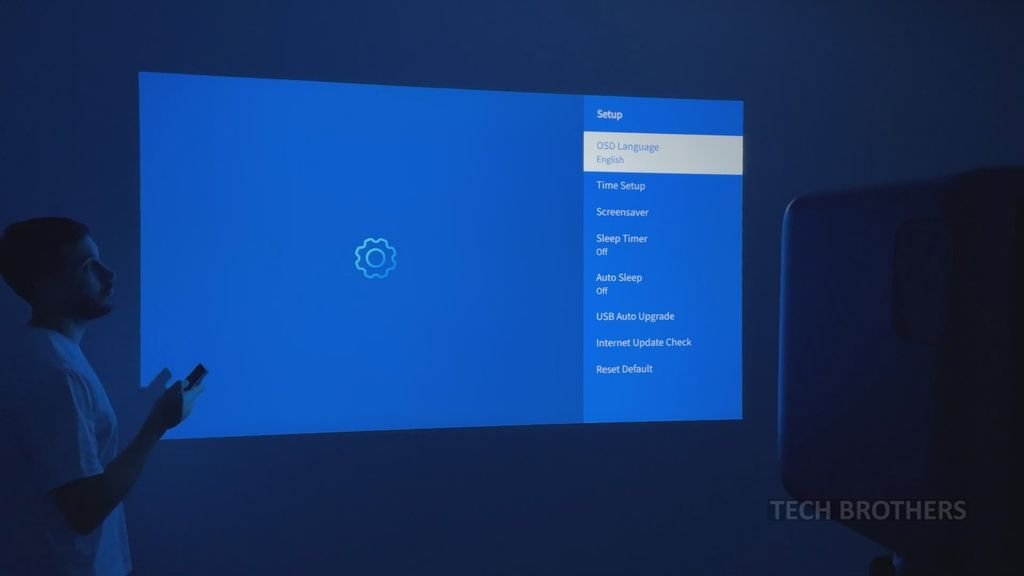
First, we have Setup with OSD language, Time Setup, Screensaver, Sleep Timer, and some other system functions.
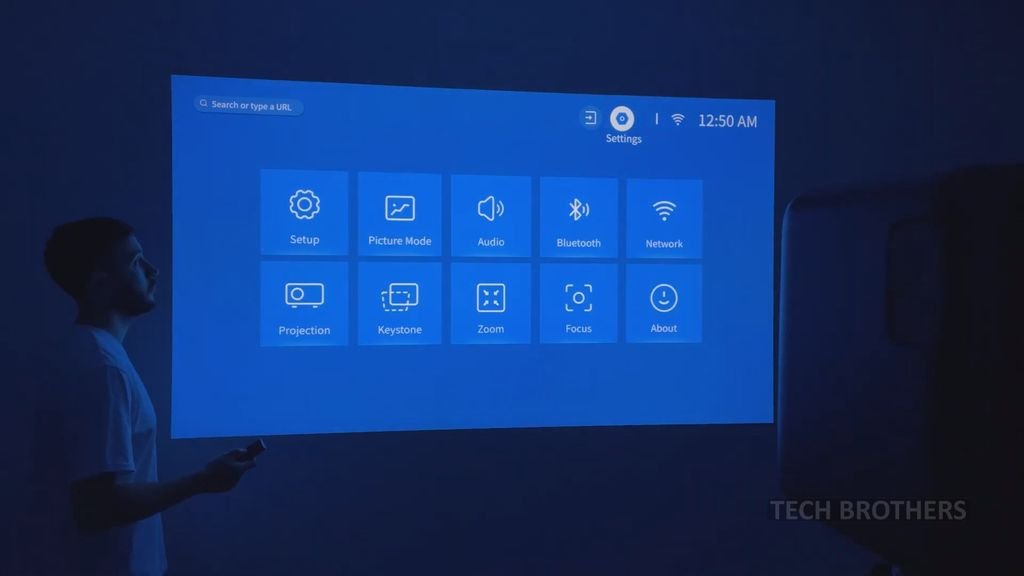
In the Picture mode menu, we can choose the Picture mode, as well as customize settings such as brightness, contrast, saturation, etc., in the Custom Picture mode.
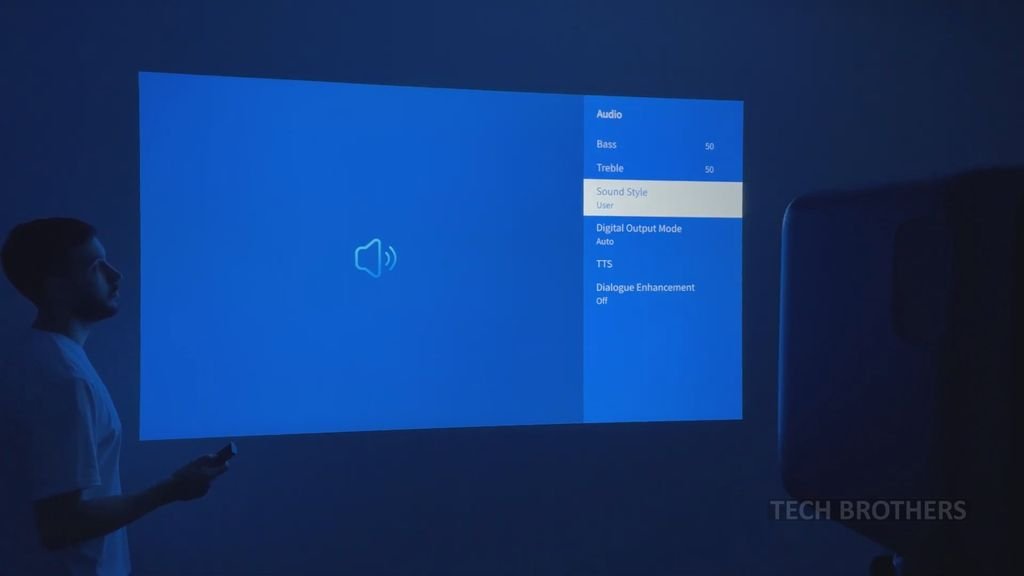
The Audio settings include Bass, Treble, Sound Style, Digital Output Mode, TTS and Dialogue Enhancement.
We will come back to the Bluetooth connection a little bit later.
We have already connected to the Wi-Fi network, but you can select a different one in the Network menu.
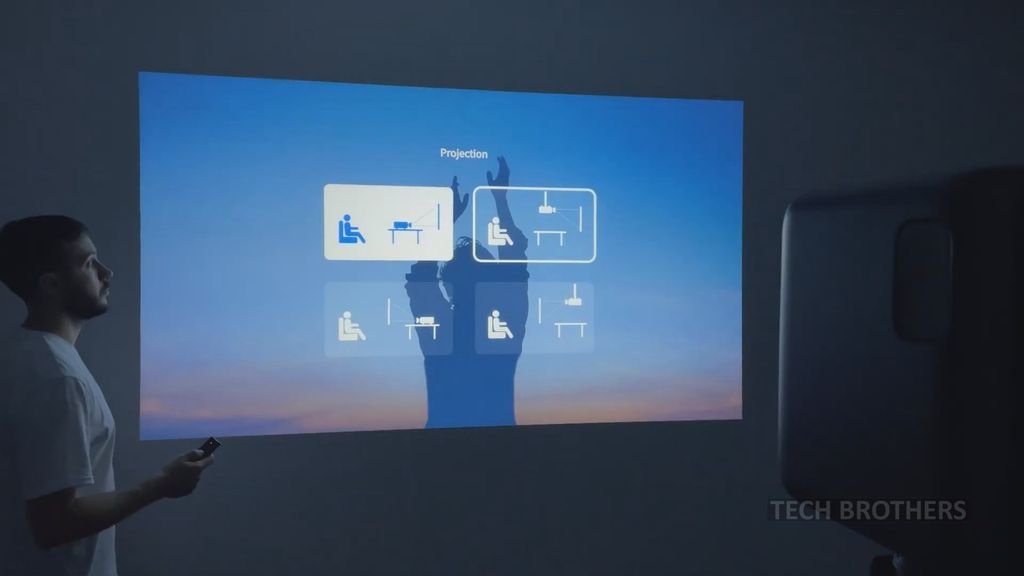
We also selected the Projection position when we first set up the projector.
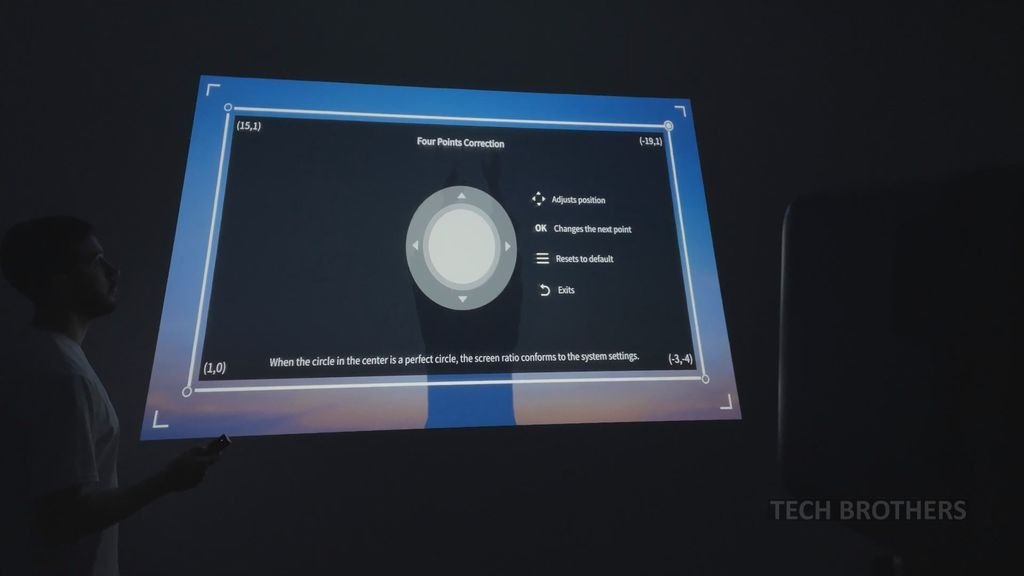
In the Keystone settings, we can turn on/off the Auto Correction after Boot and After Displacement. You can also make a four-point correction if you want, but for me the automatic correction worked fine.
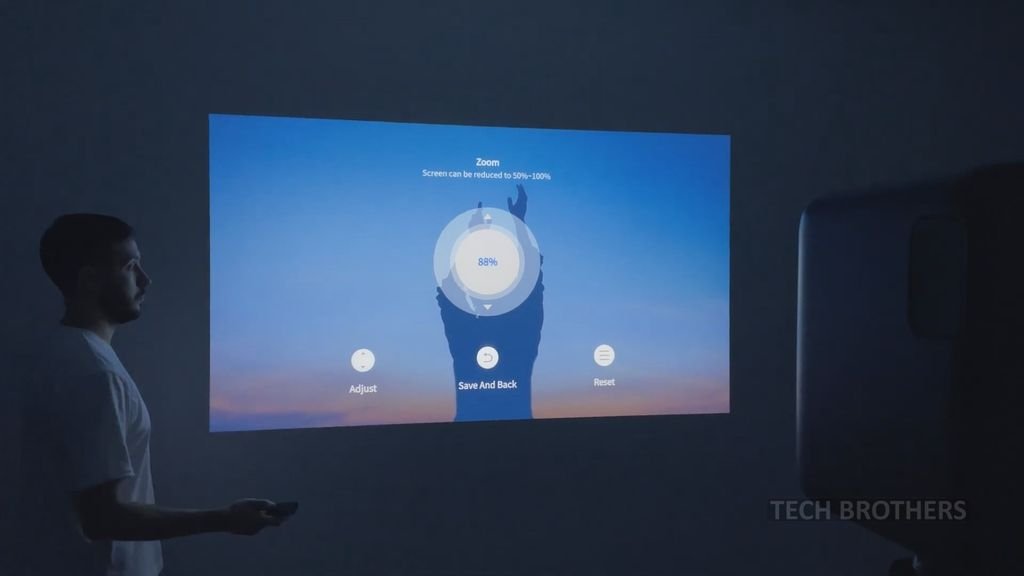
Then you can zoom in and out the projection screen.
The Focus menu has the same options as the Keystone, such as Auto Focus After Boot, After Displacement and Manual Focus.
That’s all the settings on the EXTRAVIS V3 projector.
Streaming Services
While I don’t have Netflix or Prime Video accounts because I don’t watch them, I don’t think you will have any problems with them. The apps start up and prompt you to log into your accounts.
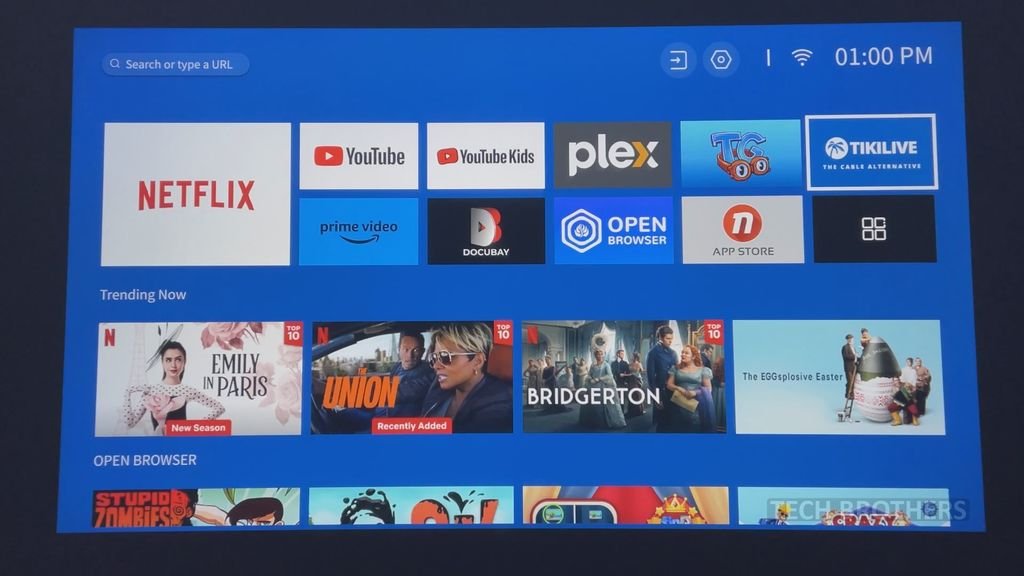
By the way, I have never heard of Docubay, but there some very interesting documentaries.
You can even open the App Store on this projector, and install other applications, such as TikTok.
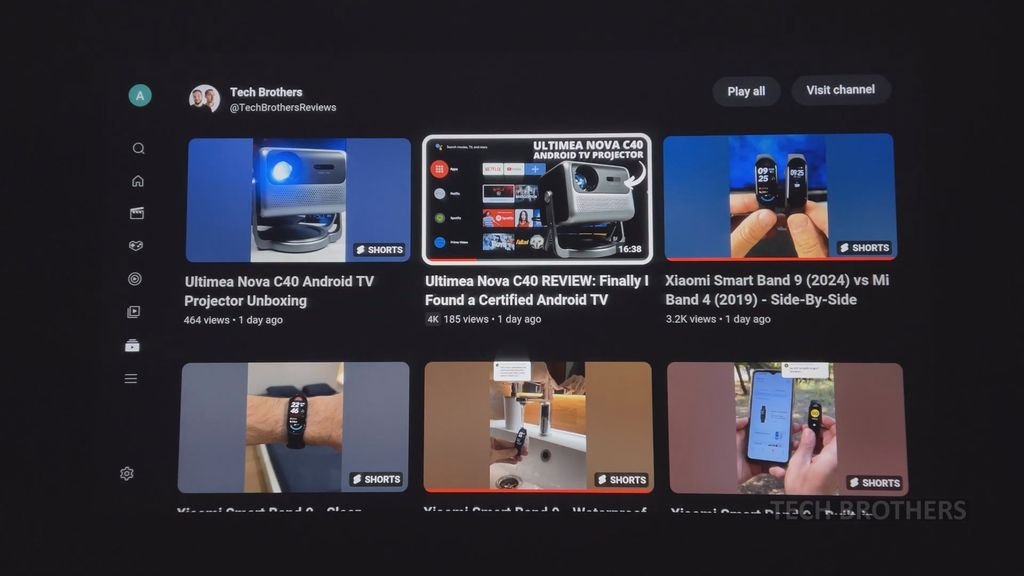
You know, I am a YouTuber and I love watching YouTube myself, so this is the most important app for me. I am glad that I can log into my account on the EXTRAVIS V3 projector and see my subscriptions and recommendations.
We will come back to YouTube a little later to watch some videos, but for now let’s check out screen mirroring.
Wi-Fi Screen Mirroring
You can use a ScreenCast to mirror the screen of an Android or Windows device, or ScreenShare for iOS device.
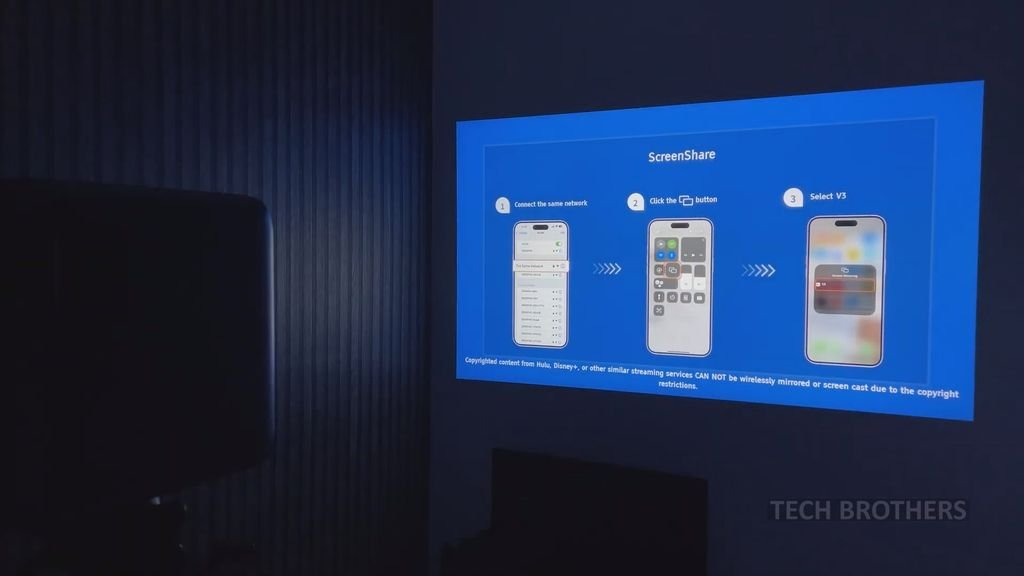
Now just open the Screen Mirroring menu on your mobile device, and select V3.
By the way, the projector and your smartphone must be connected to the same Wi-Fi network.
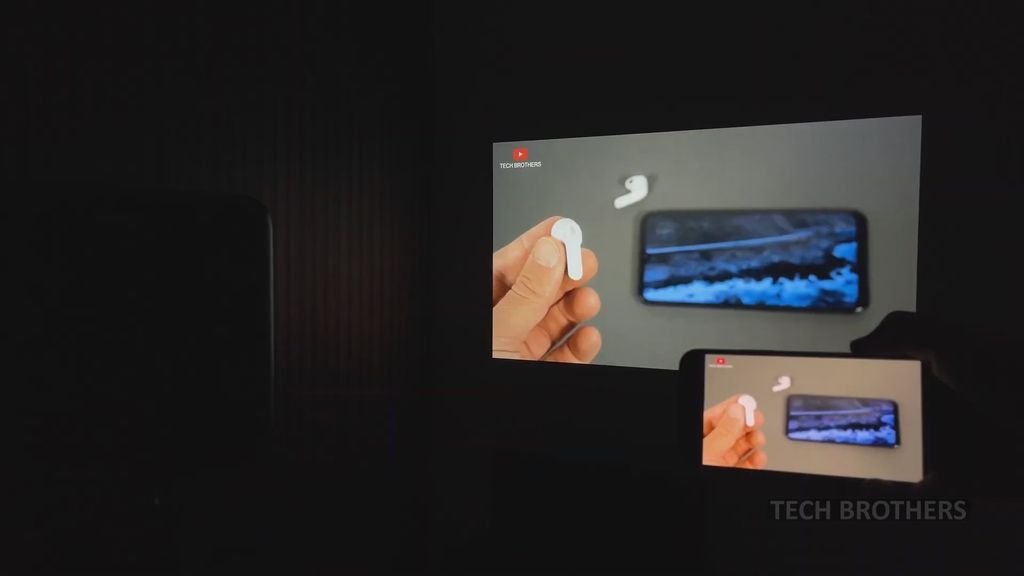
The EXTRAVIS V3 supports dual-band Wi-Fi, so the latency is very low.
Bluetooth
When it comes to the Bluetooth connection, you can go to the Bluetooth menu in the settings, and then enable Bluetooth, and wait for your Bluetooth device to be detected. My earbuds are detected and connected to the projector.
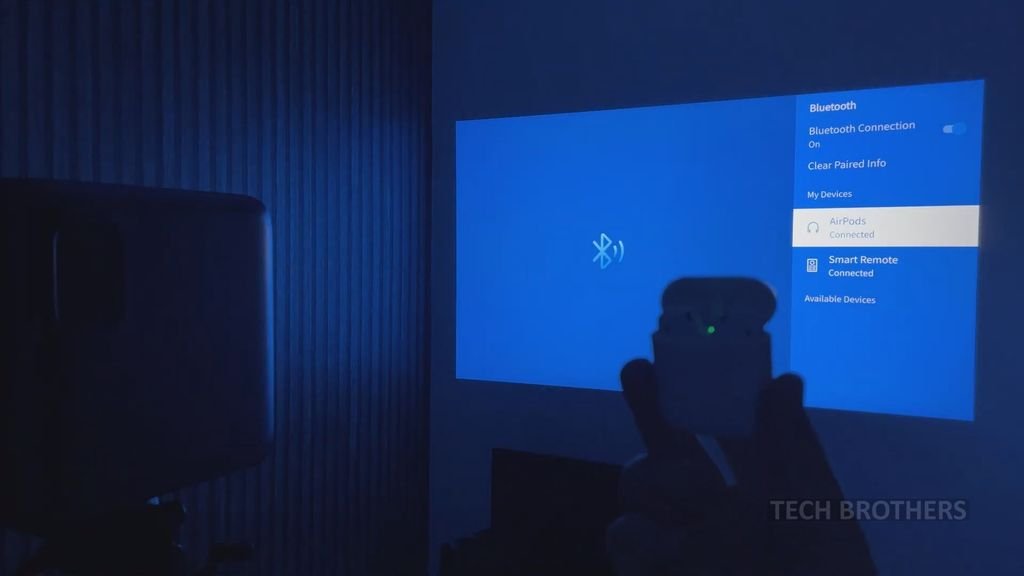
You can also connect external speakers to the projector, but I don’t think it is necessary because the built-in speakers are awesome.
Speaker Quality
They have a very high volume and I was listening to music and watching videos at only 30%. If you plan to use the projector outdoors, you need the high-volume level that the EXTRAVIS V3 has.
Fan Noise
On the other hand, the fan and cooling system in general inside the projector is quite noisy. It is about 53 db near projector, and 49 db at 1 meter.
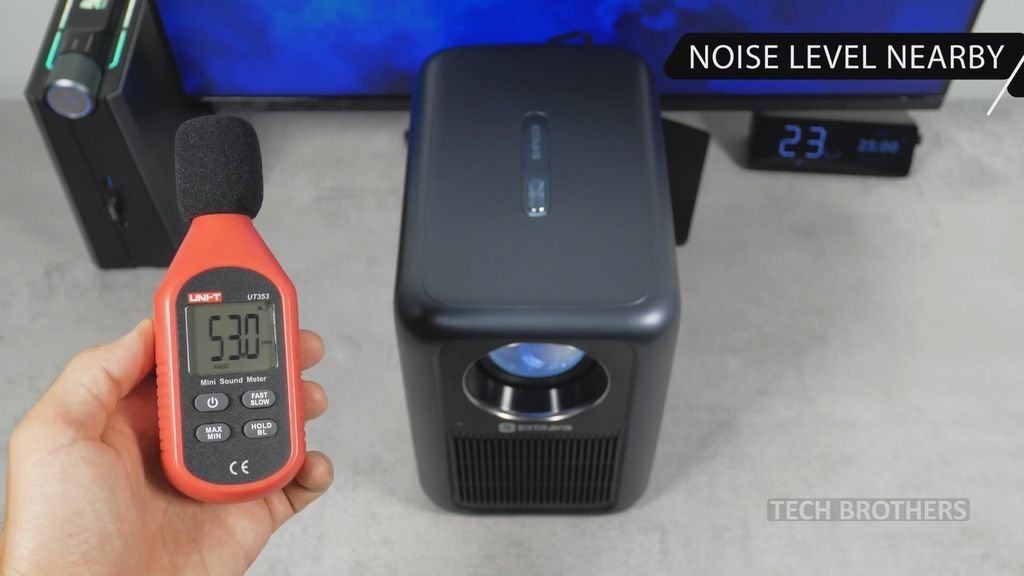
You will need to turn up the speaker volume so it overrides the fan noise.
Image Quality
Finally, let’s move on to image quality.
I promised to show you the EXTRAVIS V3 and Redmi Projector Lite side-by-side. While both projectors have 1080p native resolution, the brightness of the Extravis V3 is 5 times higher. In addition, it is 3 times more expensive by itself.
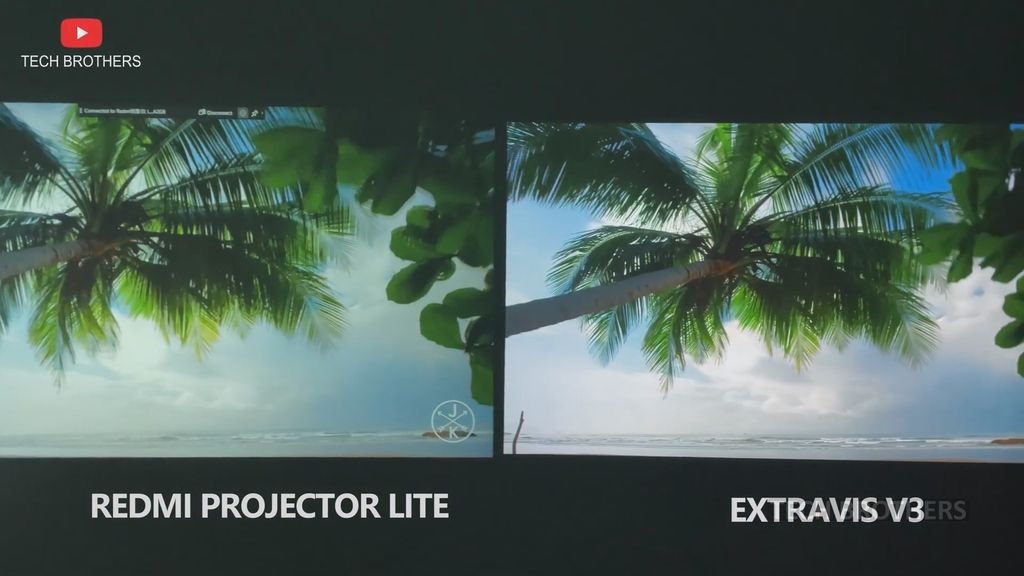
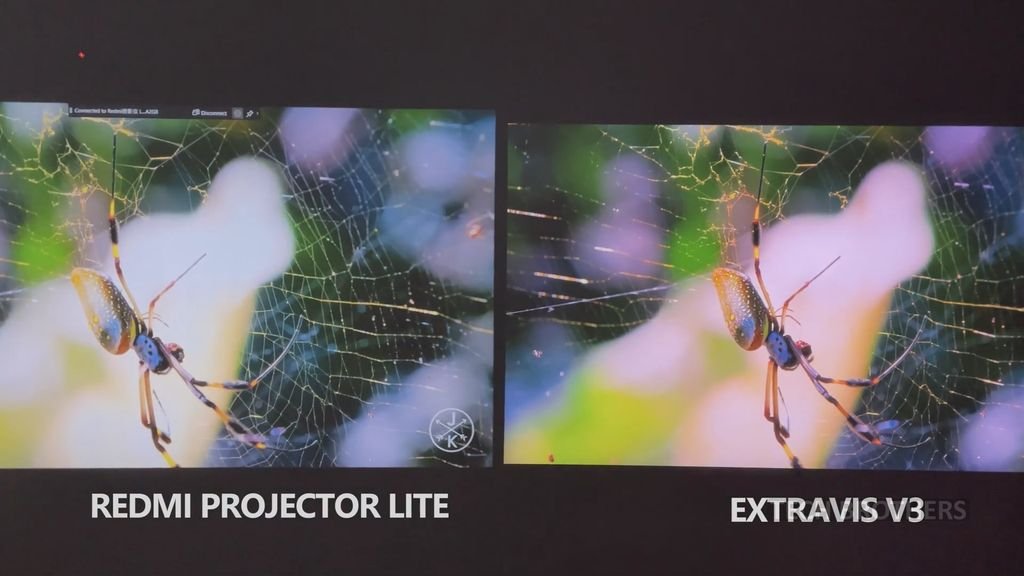
You know I said that the Redmi Projector Lite is the best budget projector of about $100, but the EXTRAVIS V3 has much better image quality.
The Redmi projector looks a bit blurry while the EXTRAVIS V3 is very sharp. In addition, its colors are more natural.
Looking at these videos, I might have thought it was a TV, not a projector.
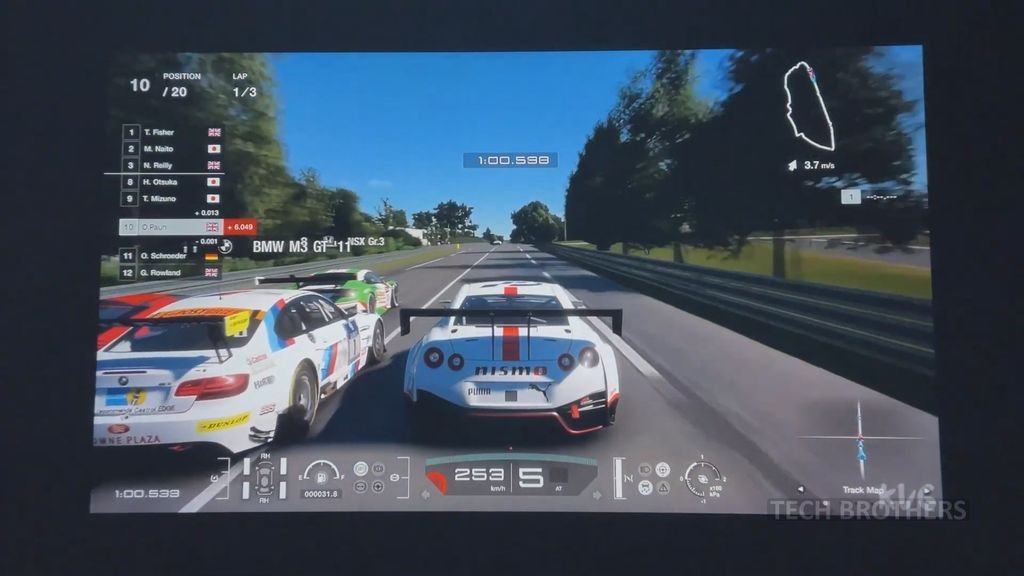
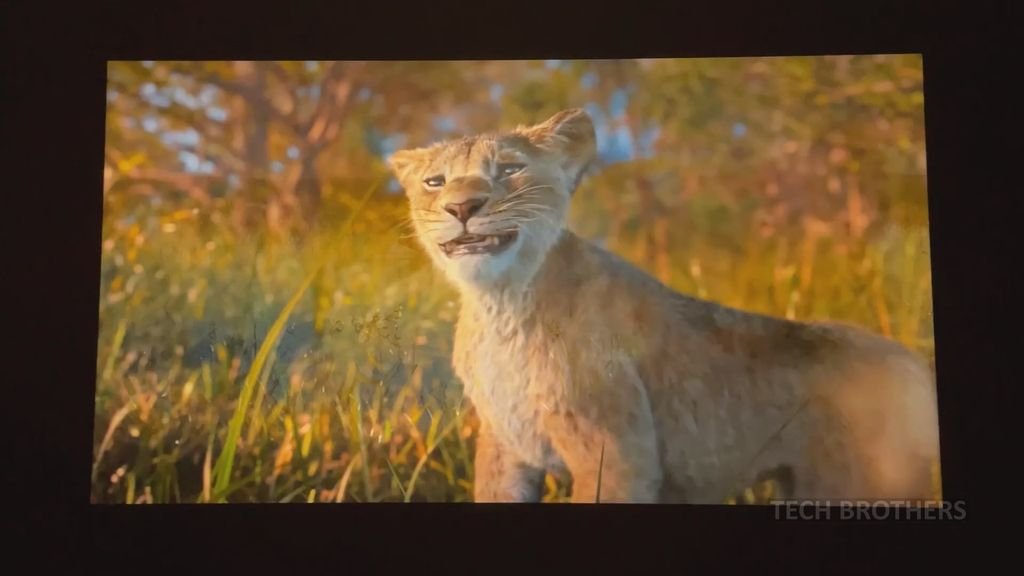
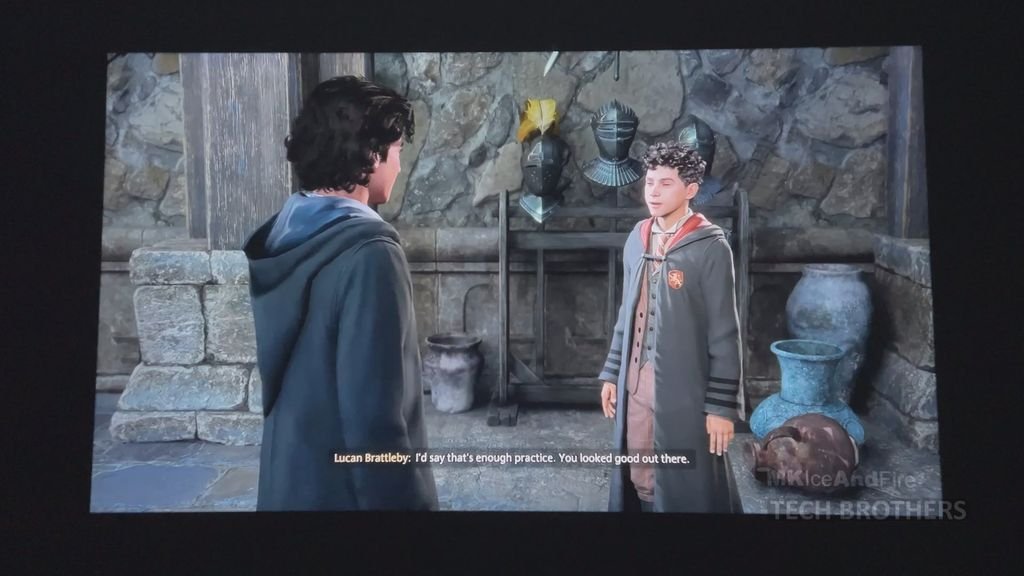
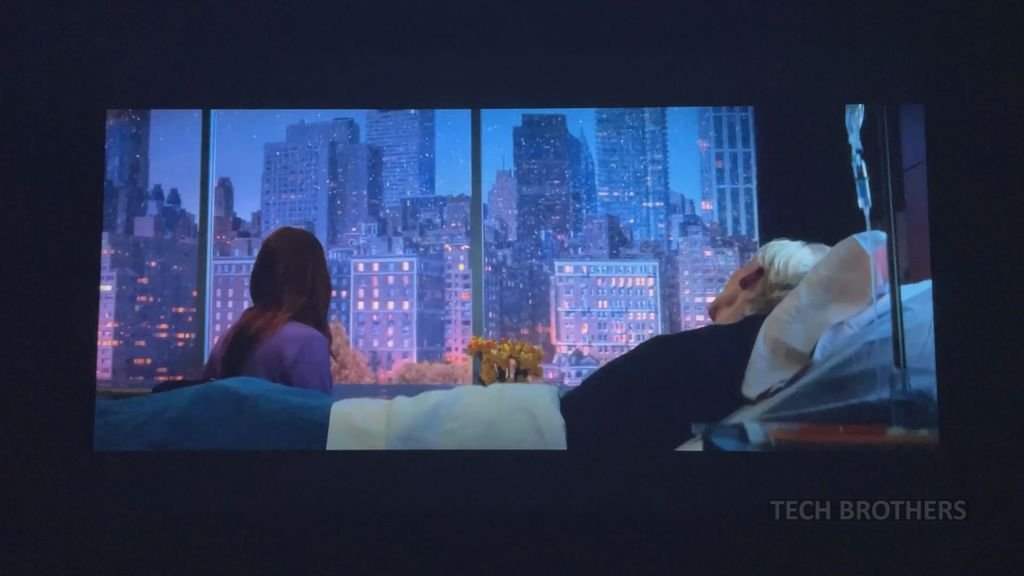
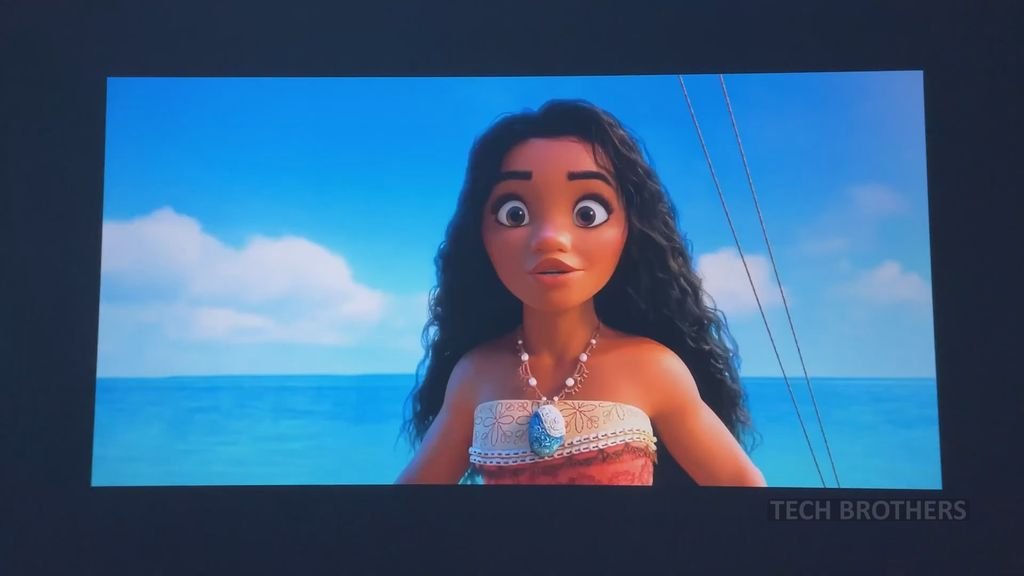
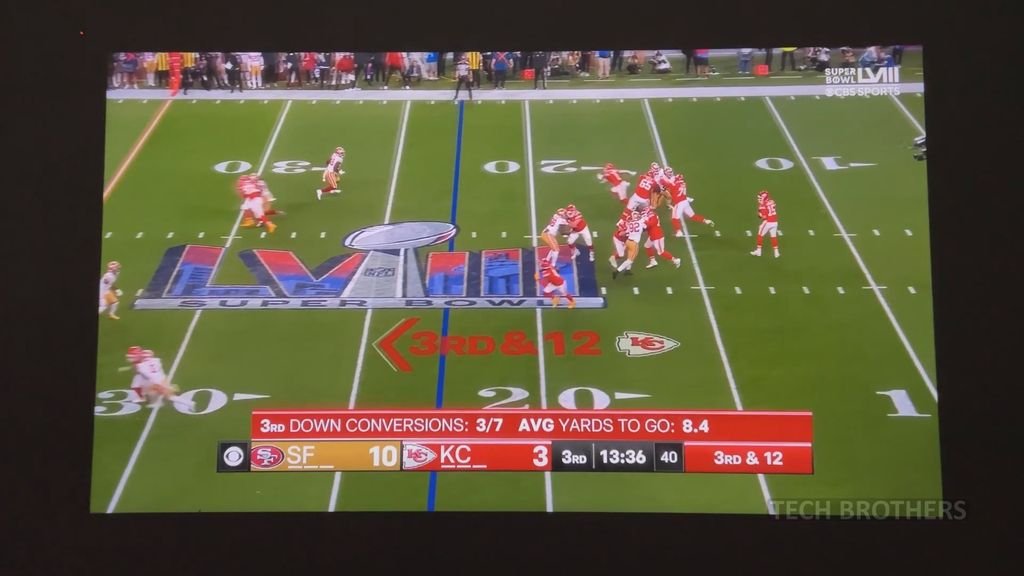
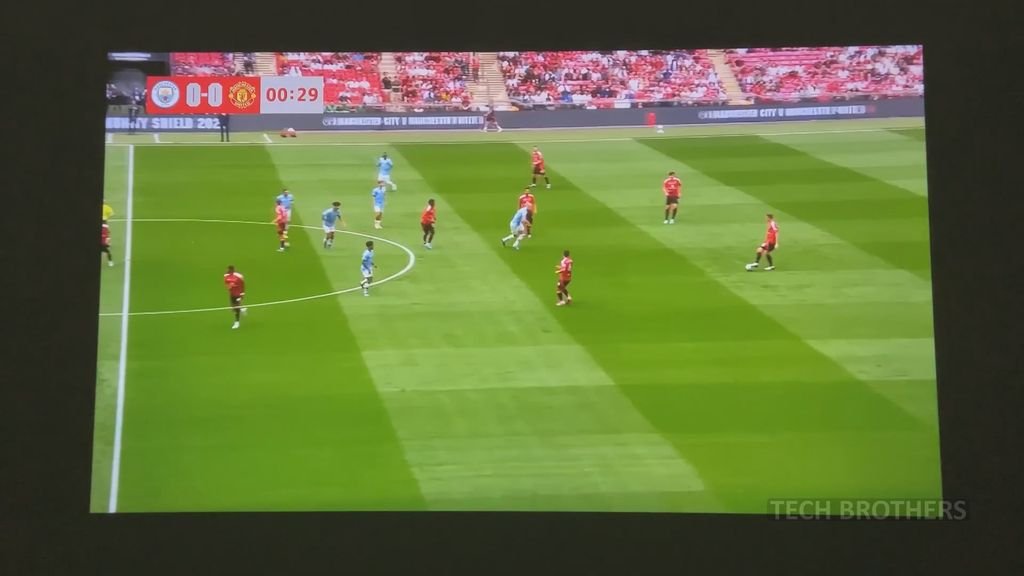
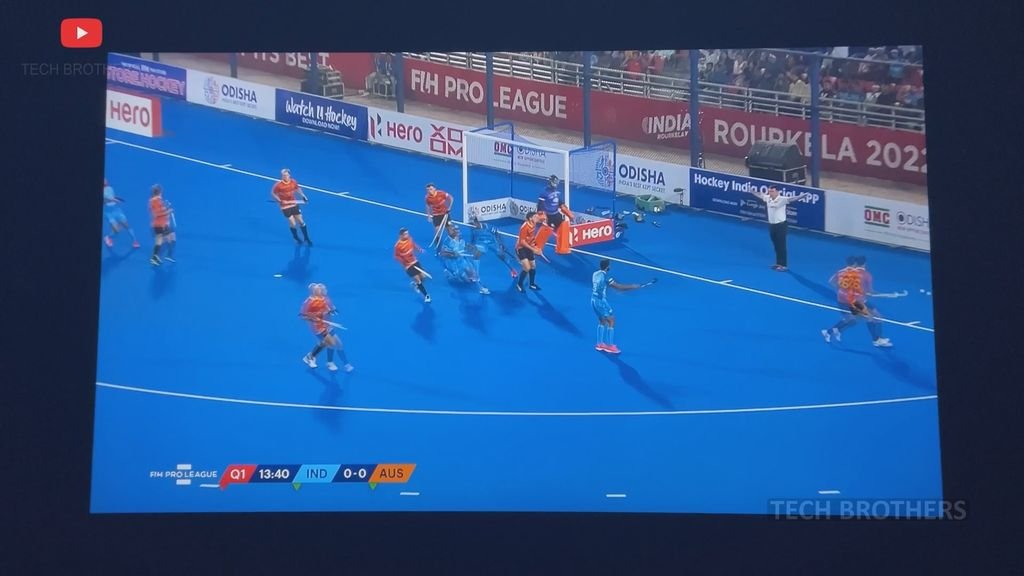
I especially enjoyed the games on this projector, but movies and sports matches are awesome as well.
Light On/Off
Talking about brightness of the EXTRAVIS V3 projector, it is 1000ANSI lumens. It is a very high brightness for a $300 projector.
As I said before, and you have seen for yourself, any content looks great in the darkroom.
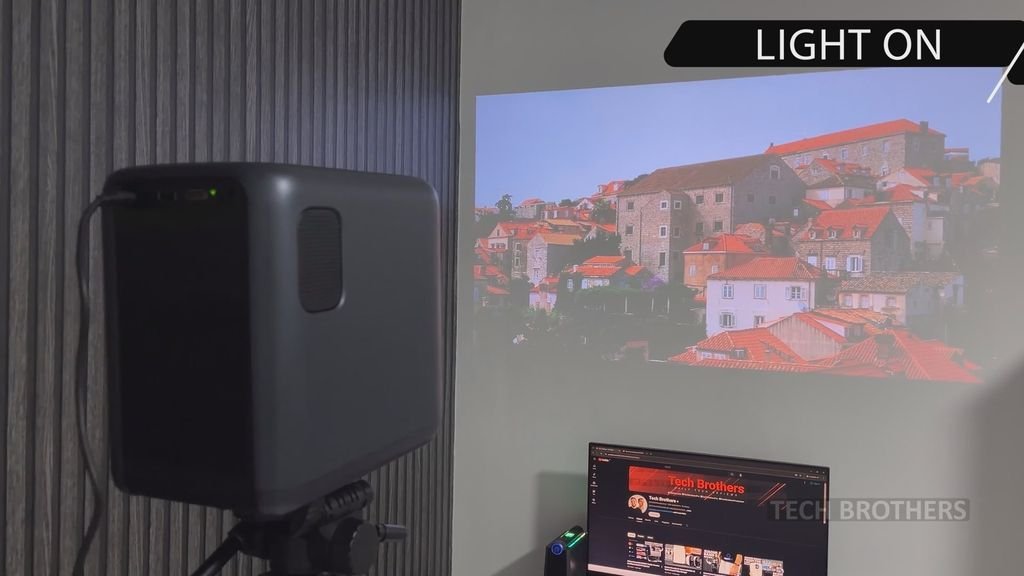
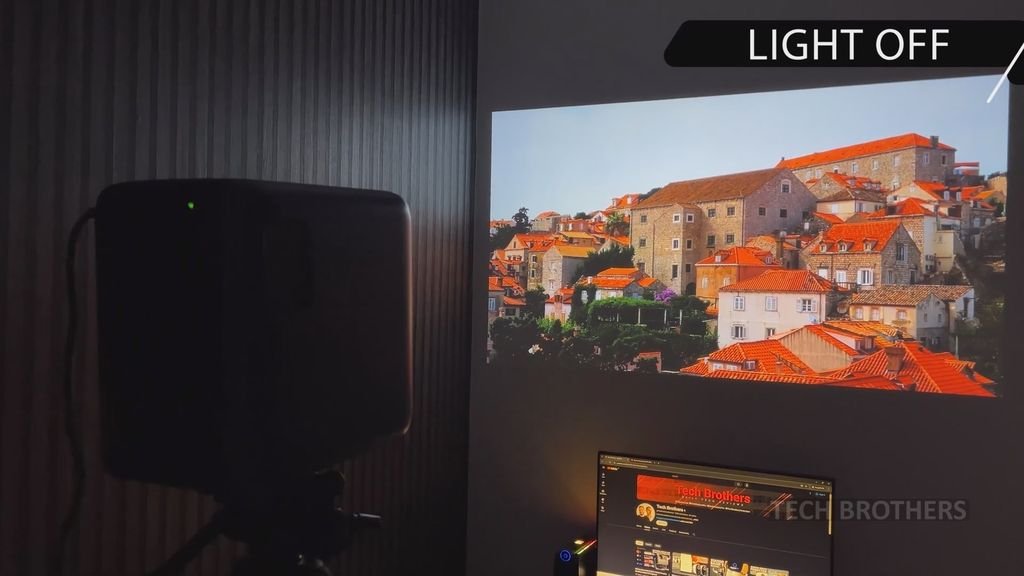
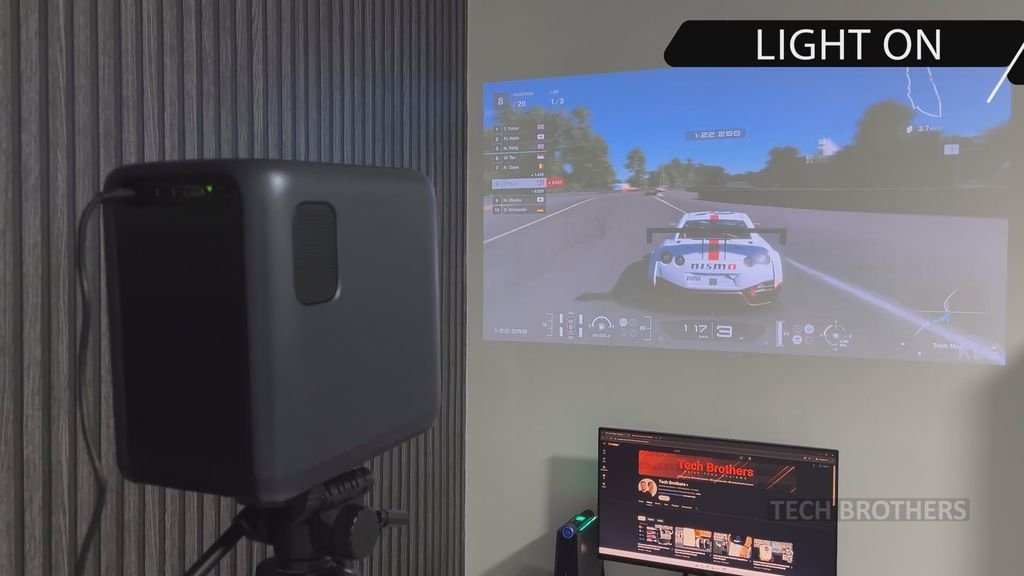
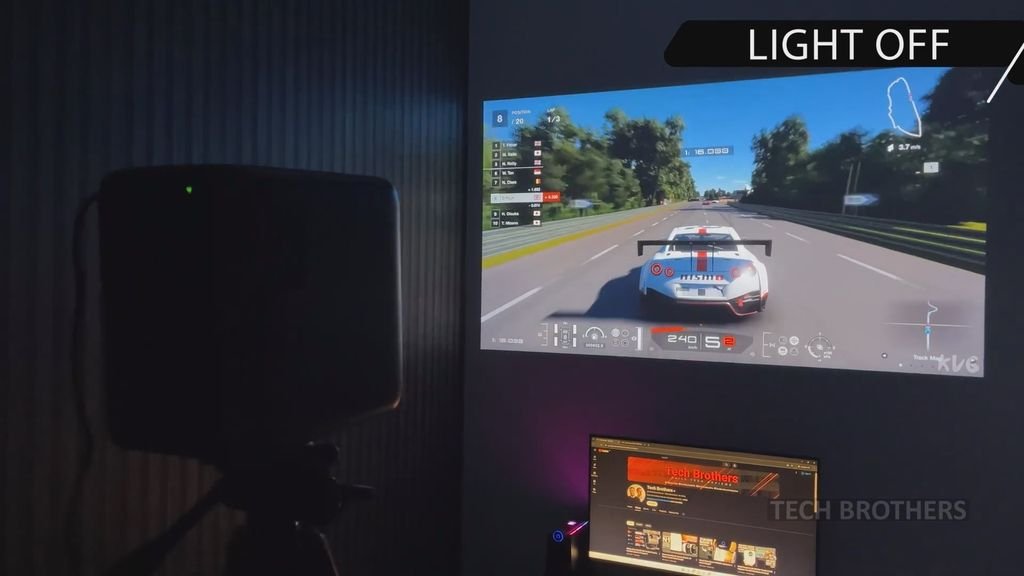
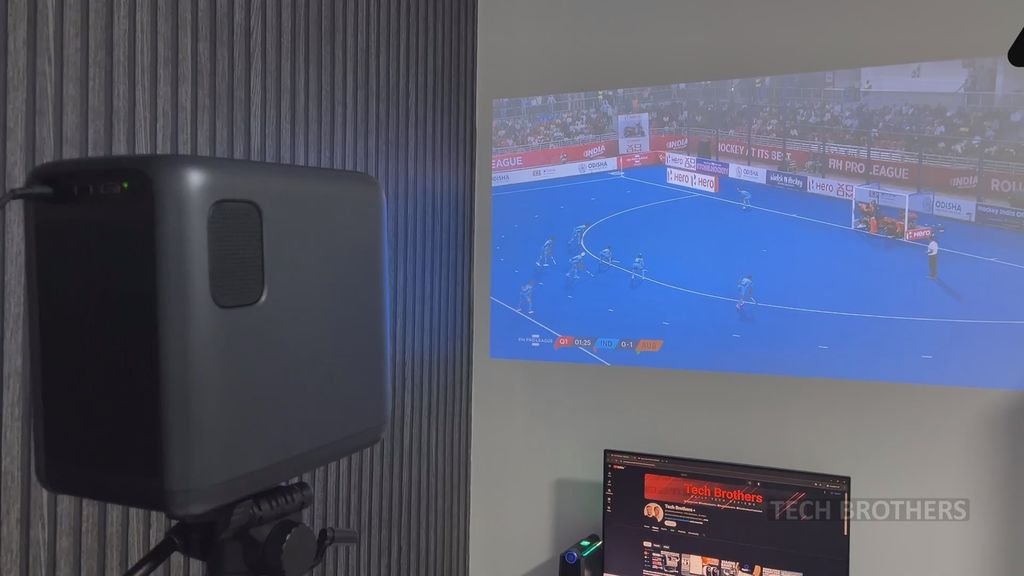
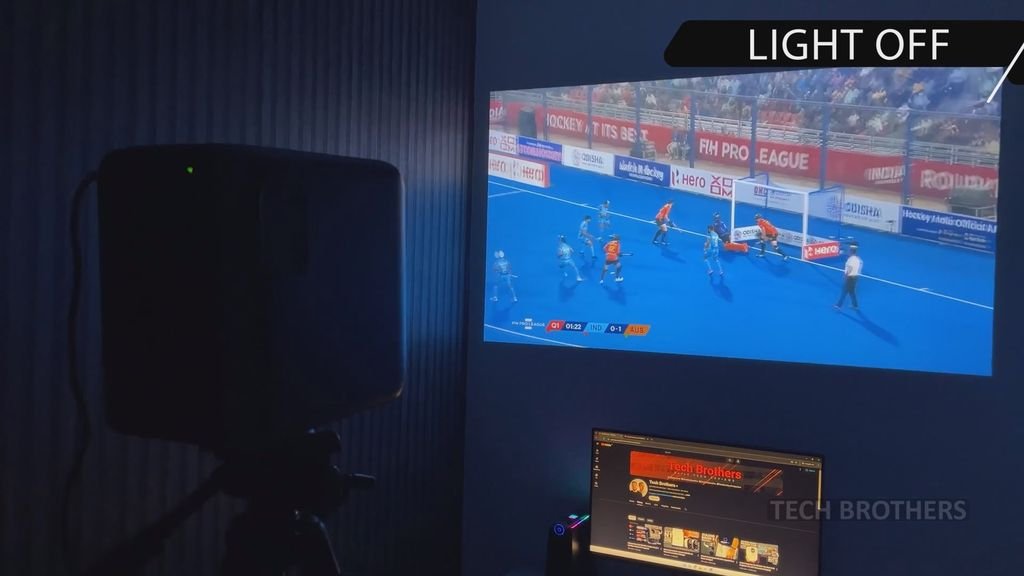
As for the bright room, you can still see the projection, but it’s not as impressive as in a dark room. You know, any projector is designed to be used in a dark environment, especially budget ones.
Conclusion
So, let’s draw conclusions.
I was blown away by the image quality and speakers quality of the EXTRAVIS V3 projector. These are probably the most important things for any projector.
I also liked the smart system based on Linux with YouTube, Netflix, Prime Video and other apps.
The auto focus and keystone correction work very well.
However, I have been testing many projectors with gimbal stands lately, and it is very convenient. I missed a gimbal stand or at least a kickstand in the EXTRAVIS projector.
I also find it quite noisy, but it is not a big problem when you are watching a movie because the speaker is very loud.
Thank you for watching this article! See you soon.